TI XDS — Setup
The Setup options control the TI XDS interface.
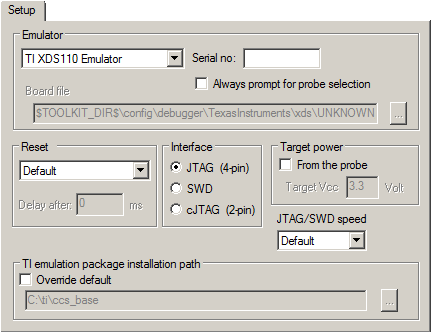
Emulator
Specify the emulator you are using. If more than one debug probe is connected to the host computer, use the Serial no option to select the correct one.
To force the Debug Probe Selection dialog box to be displayed each time you start a debug session, use the option Always prompt for probe selection.
To override the default board file, first select the menu command Specify custom board file in the Emulator drop-down menu and then specify a board file using the Board file option.
Reset
Selects the reset strategy to be used when the debugger starts. Based on your hardware, one of the strategies is the default. Choose between:
For Cortex-M devices:
- CPU (0)
Resets the CPU.
- System (1)
Resets the core and peripheral units.
- Board (2)
Uses the reset pin to reset the device. Only available for CC26xx and CC13xx devices.
- Board (3)
Uses the reset pin to reset the device. Run and halt with delay. Available for all other Cortex-M devices.
For non-Cortex-M devices:
- Software (0)
Sets
PCto the program entry address.
- Hardware (1)
Uses the reset pin to reset the device.
Target power
Select From the probe to specify that the supply voltage to your target device will be supplied by the probe. Use Target Vcc to specify the voltage.
This option is only available for the stand-alone TI XDS110 debug probe.