Edit Colors dialog box
What do you want to do?
Learn how to: Syntax coloring
Get reference information about the Edit Colors dialog box, see below the line.

The Edit Colors dialog box is available from the Colors and Fonts category in the IDE Options dialog box.
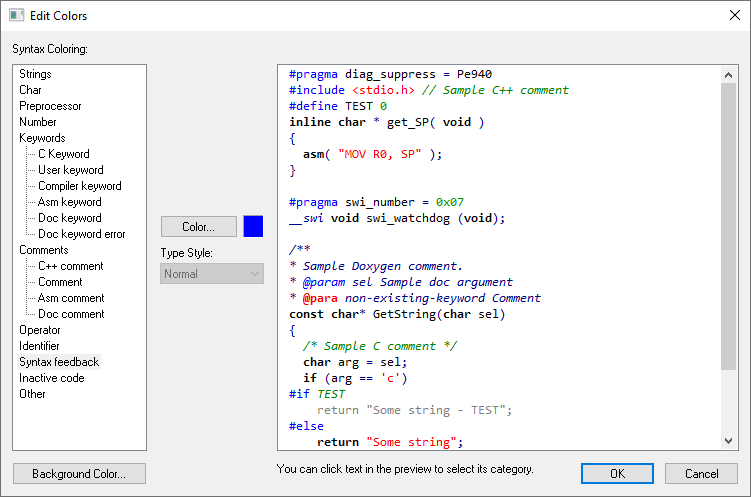
Use this dialog box to customize the colors used by the selected theme in the editor window. A preview is shown of all the changes you make.
Syntax Coloring
Select the syntactic source code element that you want to modify. The User keyword element corresponds to the keywords that you have listed in the custom keyword file, see Editor Setup Files options.
Color
Lists colors to choose from. Automatic matches the standard color set in the Windows preferences. The current color has an asterisk (*) next to its name.
Type style
Select Normal, Bold, or Italic style for the selected element.