Optimizations
The Optimizations options determine the type and level of optimization for the generation of object code.
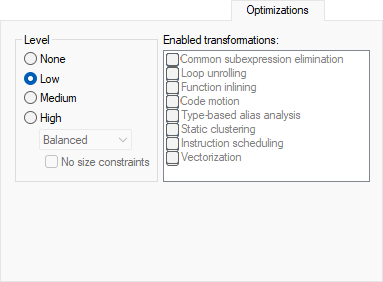
Optimization lLevel
Selects the optimization level. Choose between:
- None
No optimization—provides best debug support.
- Low
The lowest level of optimization.
- Medium
The medium level of optimization.
- High
The highest level of optimization. At this level, you must select an Optimization strategy. Choose from:
Balanced, the highest level of optimization, balancing between speed and size.
Size, the highest level of optimization, favoring size.
Speed, the highest level of optimization, favoring speed.
- No size constraints
Optimizes for speed, but relaxes the normal restrictions for code size expansion. This option is only available at the level High, Speed.
By default, a debug project will have a size optimization that is fully debuggable, while a release project will have a high balanced optimization that generates small code without sacrificing speed.
For a list of optimizations performed at each optimization level, see Optimization levels.
Enabled transformations
Selects which transformations that are available at different optimization levels. When a transformation is available, you can enable or disable it by selecting its check box. Choose between:
Common subexpression elimination
Loop unrolling
Function inlining
Code motion
Type-based alias analysis
Static clustering
Instruction scheduling
Vectorization
Note
In a debug project the transformations are, by default, disabled. In a release project the transformations are, by default, enabled.
For a brief description of the transformations that can be individually disabled, see Fine-tuning enabled transformations.