Timer Start breakpoints dialog box
What do you want to do?
Learn about:
Learn how to:
Get reference information about the Timer Start breakpoints dialog box; see below the line.

The Timer Start dialog box is available from the context menu that appears when you right-click in the Breakpoints window.
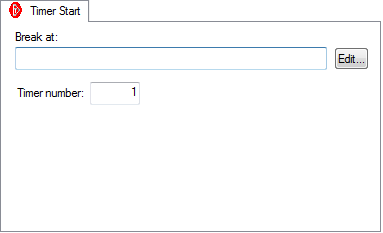
Use this dialog box to set a Timer Start breakpoint where you want to start a timer to measure the execution time between two execution points. You must also set a Timer Stop breakpoint where you want the timer to stop. The executed time is displayed in the Debug Log window.
See also Timer Stop breakpoints dialog box.
In the editor or Disassembly window, right-click and choose Timer Start from the context menu. Note that when you set a breakpoint this way, the timer number is always set to
1. You can change the timer number in the Timer Start breakpoint dialog box.Alternatively, open the Breakpoints window by choosing View>Breakpoints.
In the Breakpoints window, right-click and choose New Breakpoint>Timer Start.
Alternatively, to modify an existing breakpoint, select a breakpoint in the Breakpoints window and choose Edit on the context menu.
In the Break at text box, specify an expression, an absolute address, or a source location.
In the Timer number text box, specify which timer the breakpoint will start. Click OK.
When the breakpoint is triggered, the timer with the specified number starts.