Configure Aliases dialog box
What do you want to do?
Learn about:
Get reference information about the Configure Aliases dialog box, see below the line.

The Configure Aliases dialog box is available from the Tools menu.
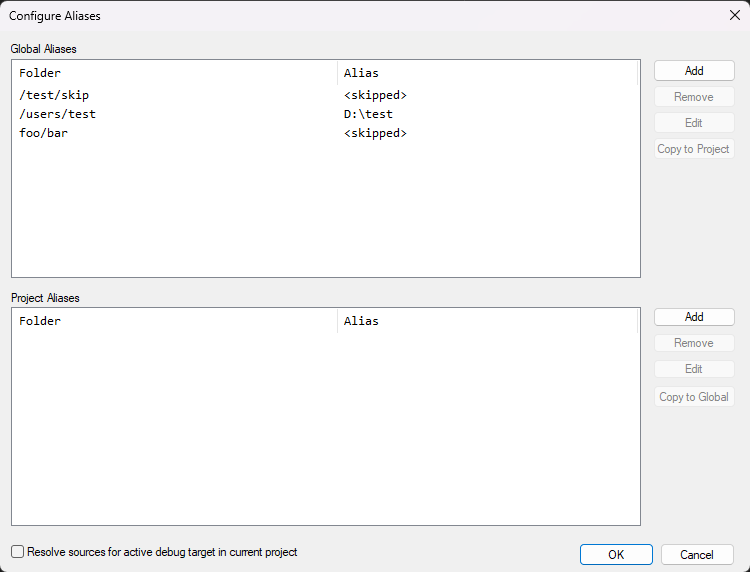
Use this dialog box to supply aliases to the IDE, so that files that are unavailable to the IDE can be located and displayed in the Workspace window when an externally built binary file is added to a project, or when you resolve source files.
Note
Project aliases have higher priority than global aliases.
Global aliases
This area lists aliases with an IDE-wide scope. They are valid for all projects in the IDE, existing and future. The area contains these columns:
- Folder
A list of paths to a location where there are source files that were used to build externally built binary files. The paths can be absolute or relative.
- Alias
Aliases for the paths displayed in the Folder column, or the text
<skipped>if the IDE has been told to ignore source files in that location.
Project aliases
This area lists aliases that are valid only for the active project. The area contains these columns:
- Folder
A list of paths to a location where there are source files that were used to build externally built binary files. The paths can be absolute or relative. Absolute paths are recommended.
- Alias
Aliases for the paths displayed in the Folder column, or the text
<skipped>if the IDE has been told to ignore source files in that location.
Resolve source for active debug target in current project
This option controls the automatic resolution of source files for the active debug target in the active project. Toggling the setting will either remove or add source files in the Workspace window for the active debug target. Choosing Resolve sources from the context menu in the Workspace window will still resolve source files.
Add
Click to open the Add Folder Alias dialog box, where you can add an alias. Use the first field in the dialog box to supply the folder path, and use the second filed to browse to the location that will become the alias.
Remove
Click to remove the selected line to the left.
Edit
Click to open the Update Folder Alias dialog box, where you can make changes to an alias. Changes to global aliases will automatically update all projects in the IDE with the new information. Changes to project aliases will only update the active project.
Copy to project
Creates a duplicate project alias of the global alias selected to the left.
Copy to global
Creates a duplicate global alias of the project alias selected to the left.