Edit menu
The Edit menu provides commands for editing and searching.
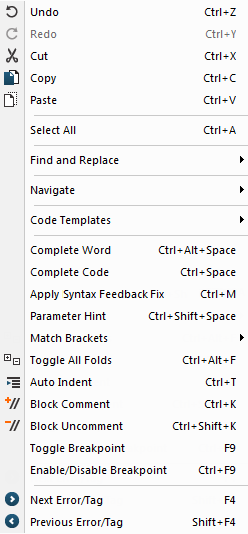
Menu commands
These commands are available:
- Undo (Ctrl+Z)

Undoes the last edit made to the current editor window.
- Redo (Ctrl+Y)

Redoes the last Undo in the current editor window. You can undo and redo an unlimited number of edits independently in each editor window.
- Cut (Ctrl+X)

The standard Windows command for cutting text in editor windows and text boxes.
- Copy (Ctrl+C)

The standard Windows command for copying text in editor windows and text boxes.
- Paste (Ctrl+V)

The standard Windows command for pasting text in editor windows and text boxes.
- Select All (Ctrl+A)

Selects all text in the active editor window.
- Find and Replace>Find (Ctrl+F)

Displays the Find dialog box where you can search for text within the current editor window, see Find dialog box. Note that if the insertion point is located in the Memory window when you choose the Find command, the dialog box will contain a different set of options than otherwise. If the insertion point is located in the Trace window when you choose the Find command, the Find in Trace dialog box is opened—the contents of this dialog box depend on the C-SPY driver you are using, see Find in Trace dialog box for more information.
- Find and Replace>Find Next (F3)

Finds the next occurrence of the specified string.
- Find and Replace>Find Previous (Shift+F3)

Finds the previous occurrence of the specified string.
- Find and Replace>Find Next (Selected) (Ctrl+F3)
Searches for the next occurrence of the currently selected text or the word currently surrounding the insertion point.
- Find and Replace>Find Previous (Selected) (Ctrl+Shift+F3)
Searches for the previous occurrence of the currently selected text or the word currently surrounding the insertion point.
- Find and Replace>Replace (Ctrl+H)

Displays a dialog box where you can search for a specified string and replace each occurrence with another string, see Replace dialog box.
Note that if the insertion point is located in the Memory window when you choose the Replace command, the dialog box will contain a different set of options than otherwise.
- Find and Replace>Find in Files

Displays a dialog box where you can search for a specified string in multiple text files, see Find in Files window.
- Find and Replace>Replace in Files

Displays a dialog box where you can search for a specified string in multiple text files and replace it with another string, see Replace in Files dialog box.
- Find and Replace>Incremental Search (Ctrl+I)

Displays a dialog box where you can gradually fine-tune or expand the search by continuously changing the search string, see Incremental Search dialog box.

- Navigate>Toggle Bookmark (Ctrl+F2)

Toggles a bookmark at the line where the insertion point is located in the active editor window.
- Navigate>Previous Bookmark (Shift+F2)
Moves the insertion point to the previous bookmark that has been defined with the Toggle Bookmark command.
- Navigate>Next Bookmark (F2)
Moves the insertion point to the next bookmark that has been defined with the Toggle Bookmark command.
- Navigate>Navigate Backward (Alt+Left Arrow)

Navigates backward in the insertion point history. The current position of the insertion point is added to the history by actions like Go to definition and clicking on a result from the Find in Files command.
- Navigate>Navigate Forward (Alt+Right Arrow)

Navigates forward in the insertion point history. The current position of the insertion point is added to the history by actions like Go to definition and clicking on a result from the Find in Files command.
- Navigate>Go to Definition (F12)
Shows the declaration of the selected symbol or the symbol where the insertion point is placed. This menu command is available when browse information has been enabled, see Project options.
- Code Templates>Insert Template (Ctrl+Alt+V)
Displays a list in the editor window from which you can choose a code template to be inserted at the location of the insertion point. If the code template you choose requires any field input, the Template dialog box appears, see Template dialog box. For information about using code templates, see Using and adding code templates.
- Code Templates>Edit Templates
Opens the current code template file, where you can modify existing code templates and add your own code templates. For information about using code templates, see Using and adding code templates.
- Complete Word (Ctrl+Alt+Space)
Attempts to complete the word you have begun to type, basing the guess on the contents of the rest of the editor window.
- Complete Code (Ctrl+Space)
Shows a list of classes, functions, variables, etc, that are available when you type. For more information, see Code completion.
- Apply Syntax Feedback Fix (Ctrl+M)
Applies the suggested fix for the syntactic issue identified by the Syntax feedback feature in the editor. For more information, see the description under Editor window.
- Parameter Hint (Ctrl+Shift+Space)
Suggests parameters as tooltip information for the function parameter list you have begun to type. For more information, see Parameter hint.
- Match Brackets
Selects all text between the brackets immediately surrounding the insertion point, increases the selection to the next hierarchic pair of brackets, or beeps if there is no higher bracket hierarchy.
- Toggle All Folds (Ctrl+Alt+F)

Expands/collapses all code folds in the current editor window.
- Auto Indent (Ctrl+T)

Indents one or several lines you have selected in a C/C++ source file. To configure the indentation, see Configure Auto Indent dialog box.
- Block Comment (Ctrl+K)

Places the C++ comment character sequence
//at the beginning of the selected lines.
- Block Uncomment (Ctrl+Shift+K)

Removes the C++ comment character sequence
//from the beginning of the selected lines.
- Toggle Breakpoint (F9)

Toggles a breakpoint at the statement or instruction that contains or is located near the cursor in the source window. This command is also available as an icon button on the debug toolbar.
- Enable/Disable Breakpoint (Ctrl+F9)
Toggles a breakpoint between being disabled, but not actually removed—making it available for future use—and being enabled again.
- Next Error/Tag (F4)

If the message window contains a list of error messages or the results from a Find in Files search, this command displays the next item from that list in the editor window.
- Previous Error/Tag (Shift+F4)

If the message window contains a list of error messages or the results from a Find in Files search, this command displays the previous item from that list in the editor window.