How projects are organized
The IDE allows you to organize projects in an hierarchical tree structure showing the logical structure at a glance.
The IDE has been designed to suit the way that software development projects are typically organized. For example, perhaps you need to develop related versions of an application for different versions of the target hardware, and you might also want to include debugging routines into the early versions, but not in the final application.
Versions of your applications for different target hardware will often have source files in common, and you might want to be able to maintain only one unique copy of these files, so that improvements are automatically carried through to each version of the application. Perhaps you also have source files that differ between different versions of the application, such as those dealing with hardware-dependent aspects of the application.
In the following sections, the various levels of the hierarchy are described.
Projects and workspaces
Typically you create one or several projects, where each project can contain either:
Source code files, which you can use for producing your embedded application or a library. For an example where a library project has been combined with an application project, see the example about creating and using libraries in the tutorials.
An externally built executable file that you want to load in C-SPY. For information about managing executable files built outside of the IDE, see Resolving source files for externally built executable files and Loading executable files built outside of the IDE.
If you have several related projects, you can access and work with them simultaneously. To achieve this, you can organize related projects in workspaces.
Each workspace you define can contain one or more projects, and each project must be part of at least one workspace.
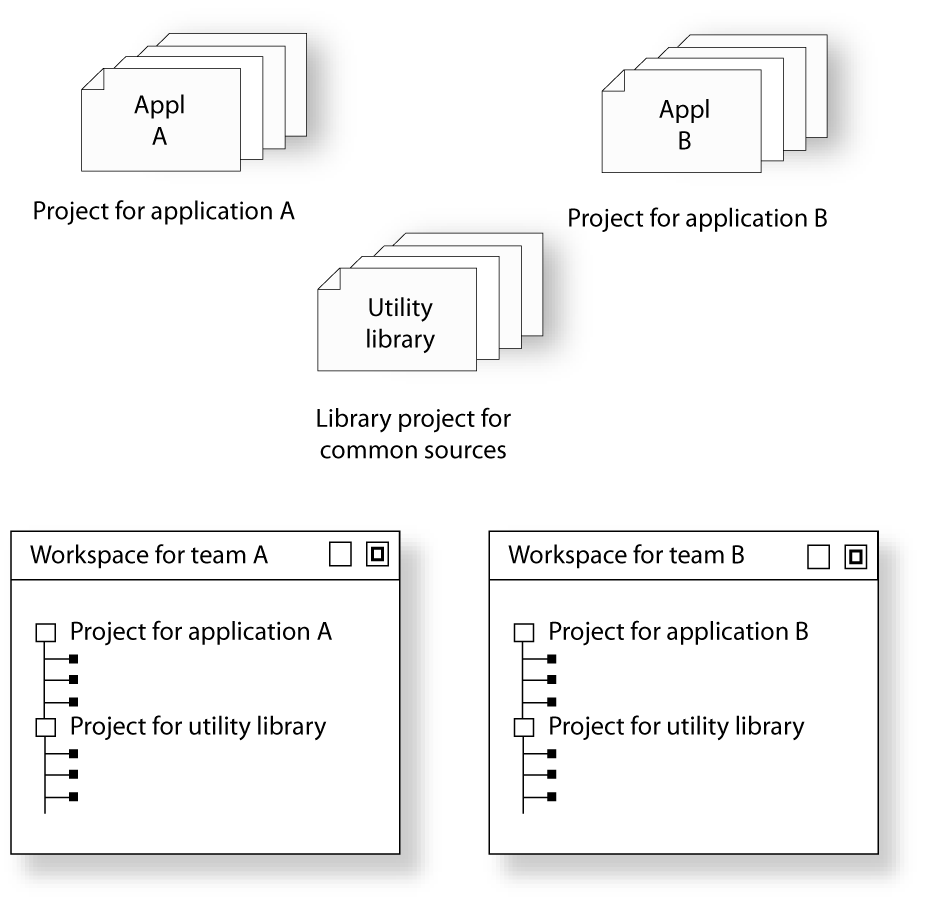
Consider this example: two related applications—for instance A and B—are developed, requiring one development team each (team A and B). Because the two applications are related, they can share parts of the source code between them. The following project model can be applied:
Three projects—one for each application, and one for the common source code
Two workspaces—one for team A and one for team B.
Collecting the common sources in a library project (compiled but not linked object code) is both convenient and efficient, to avoid having to compile it unnecessarily. This figure illustrates this example:
Groups
Normally, projects contain hundreds of files that are logically related. You can define each project to contain one or more groups, in which you can collect related source files. You can also define multiple levels of subgroups to achieve a logical hierarchy. By default, each group is present in all build configurations of the project, but you can also specify a group to be excluded from a particular build configuration.
Source files and their paths
Source files can be located directly under the project node or in a hierarchy of groups. The latter is convenient if the amount of files makes the project difficult to survey. By default, each file is present in all build configurations of the project, but you can also specify a file to be excluded from a particular build configuration.
Only the files that are part of a build configuration will actually be built and linked into the output code.
Once a project has been successfully built, all include files and output files are displayed in the structure below the source file that included or generated them.
Note
The settings for a build configuration can affect which include files that are used during the compilation of a source file. This means that the set of include files associated with the source file after compilation can differ between the build configurations.
The IDE supports relative source file paths to a certain degree, for:
Project files
Paths to files part of the project file are relative if they are located on the same drive. The path is relative either to
$PROJ_DIR$or$EW_DIR$. The argument variable$EW_DIR$is only used if the path refers to a file located in a subdirectory of$EW_DIR$and the distance from$EW_DIR$is shorter than the distance from$PROJ_DIR$.Paths to files that are part of the project file are absolute if the files are located on different drives.
Workspace files
For files located on the same drive as the workspace file, the path is relative to
$PROJ_DIR$.For files located on another drive than the workspace file, the path is absolute.
Debug files
If your debug image file contains debug information, any paths in the file that refer to source files are absolute.
Drag and drop
You can easily drag individual source files and project files from Windows Explorer to the Workspace window. Source files dropped on a group are added to that group. Source files dropped outside the project tree—on the Workspace window background—are added to the active project.