Working with example projects
Example applications are provided with IAR Embedded Workbench. You can use these examples to get started using the development tools from IAR. You can also use the examples as a starting point for your application project.
You can find the examples in the rx\examples directory. The examples are ready to be used as is. They are supplied with ready-made workspace files, together with source code files and all other related files.
Choose Help>Information Center and click Example projects.
Browse to the example that matches the specific evaluation board or starter kit you are using.
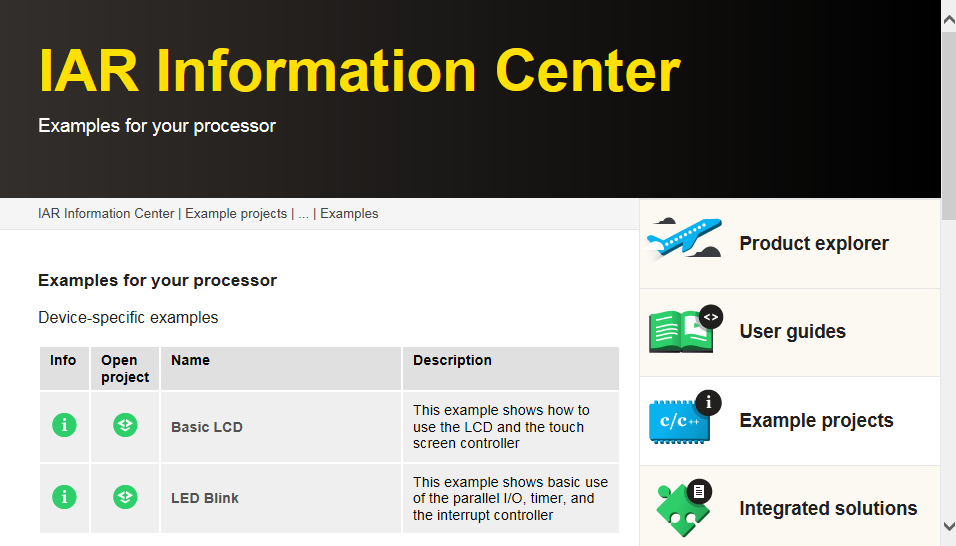
Click the Open Project button.
In the dialog box that appears, choose a destination folder for your project.
The available example projects are displayed in the workspace window. Select one of the projects, and if it is not the active project (highlighted in bold), right-click it and choose Set as Active from the context menu.
To view the project settings, select the project and choose Project>Options. Verify the settings for General Options>Target>Device and Debugger>Setup>Driver. As for other settings, the project is set up to suit the target system you selected.
For more information about the C-SPY options and how to configure C-SPY to interact with the target board, see the C-SPY Debugging documentation.
Click OK to close the project Options dialog box.
To compile and link the application, choose Project>Make or click
 the Make button.
To start C-SPY, choose Project>Download and Debug or click the Download and Debug button. If C-SPY fails to establish contact with the target system, see No contact with the target hardware.
Choose Debug>Go or click
 the Go button to start the application.
Click the Stop button to stop execution.