C-STAT Static Analysis options
To open the C-STAT Static Analysis page, choose Project>Options and select the Static Analysis category.
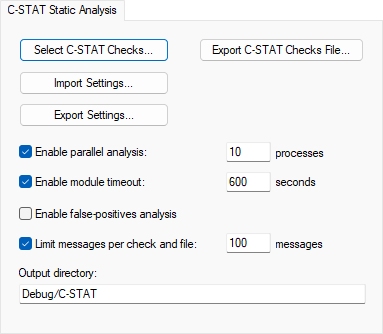
Use this page to specify options for performing a static analysis using C-STAT.
- Select C-STAT Checks
Opens the Select C-STAT Checks dialog box where you can select which checks to perform.
- Import Settings
Opens a standard open dialog box to use for locating and opening an XML file that contains the checks to perform. The content of the file will be imported and can be modified in the Select C-STAT Checks dialog box.
- Export Settings
Opens a standard save dialog box for locating and saving an XML file with your currently selected checks.
- Export C-STAT Checks File
Opens a standard save dialog box where you can select where to save a list of the currently selected checks as a plain text file.
- Enable parallel analysis
Enables C-STAT to perform analysis in parallel.
- Enable module timeout
Specify the number of seconds after which the analysis terminates.
- Processes
Specify the number of processes to be used by C-STAT for performing an analysis.
- Enable false-positives analysis
Attempts to remove false messages, commonly referred to as false positives.
- Limit messages per check and file
Specify the maximum number of messages to be produced per check and file.
- Output directory
Overrides the default directory for storing all information generated by C-STAT. Type the name of the directory where you want to store the information for the project. To delete the contents of this directory, choose Project>C-STAT Static Analysis>Clear Analysis Results.
Note
This option is not available in all versions of IAR Embedded Workbench.