Using CMSIS-Pack support in IAR Embedded Workbench
In your IAR Embedded Workbench workspace, choose Project>Create New Project.
In the Create New Project dialog box that is displayed, select Empty CMSISPack project and click OK.
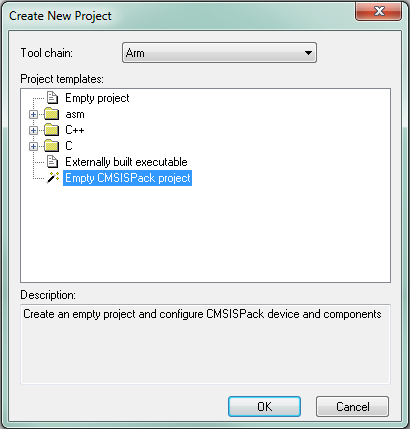
Save your project using the Save As dialog box that is displayed. Note that the project must be saved in a different directory than the workspace you are using.
In the Select device dialog box that is displayed, select your device and click OK.
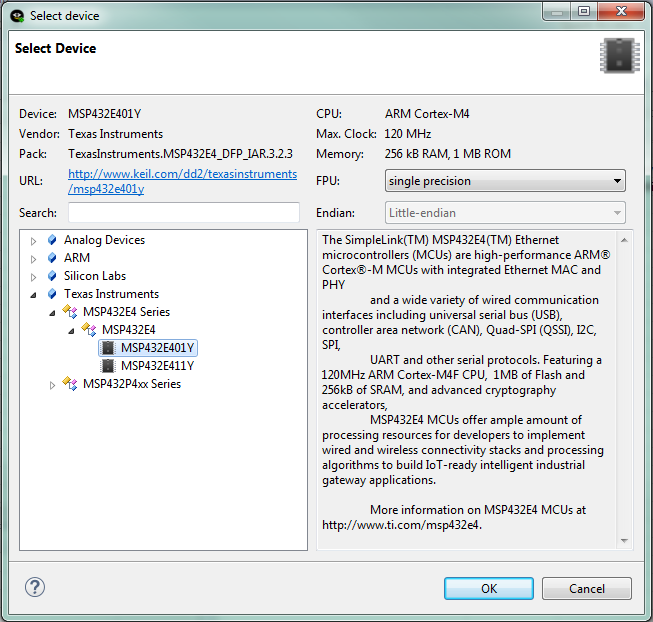
The CMSIS Manager dialog box is now displayed. Use this dialog box to select prebuilt CMSIS-Pack software components and example projects that are available for your device. For more information, see CMSIS Manager dialog box. See also Working with example projects.
In the Components view, select the software components that you need.
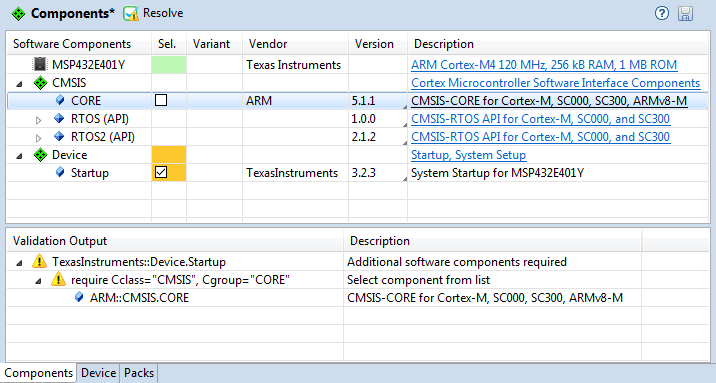
Some unresolved dependencies are highlighted in orange. To resolve such an unresolved dependency, select it and click
 the toolbar button Resolve.
If a dependency is highlighted in red, the CMSIS Manager dialog box could not find a resolution for it. Typically, you will then need to install a missing pack.
To change your device, in the Device view, click the Change button and select the device you want to use.
To make your selections take effect, choose File>Save. Your IAR Embedded Workbench project is then populated with the files associated with your selections in the CMSIS Manager dialog box.