Working with example projects
Example applications are provided with IAR Embedded Workbench. You can use these examples to get started using the development tools from IAR. You can also use the examples as a starting point for your application project.
In addition to the examples provided by IAR, you can also access a large number of CMSIS-Pack example projects from IAR Embedded Workbench.
The examples are ready to be used as is. They are supplied with ready-made workspace files, together with source code files and all other related files.
By default, downloaded examples are installed on your system disk, which might have limited space. If you want to change the location, configure a global custom argument variable
$EXAMPLES_DIR$and set its value to the path where you want to download the examples to. See Configure Custom Argument Variables dialog box.Choose Help>Information Center and click Example projects.
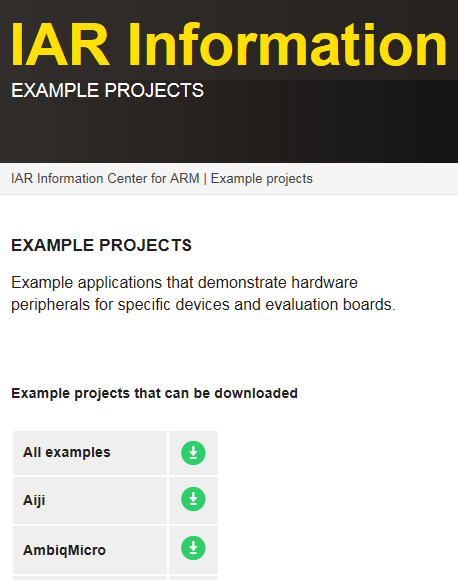
Under Example projects that can be downloaded, click the download button for the chip manufacturer that matches your device.
In the dialog box that is displayed, choose where to get the examples from. Choose between:
Download from IAR
Browse to a local copy of the examples archive. If you have downloaded the archive previously, perhaps with an older version of the product, you can use the browse button to locate the archive.
The examples for the selected device vendor will be extracted to your computer. Unless you have changed the location by defining a global custom argument variable
$EXAMPLES_DIR$, the examples will be extracted to theProgram Datadirectory or the corresponding directory depending on your Windows operating system.The downloaded examples will now appear in the list of installed example projects in the Information Center.
Choose Help>Information Center and click Example projects.
Under Installed example projects, browse to the example that matches the specific evaluation board or starter kit you are using, or follow the steps under To download an example project if you want to download an example from the IAR website.
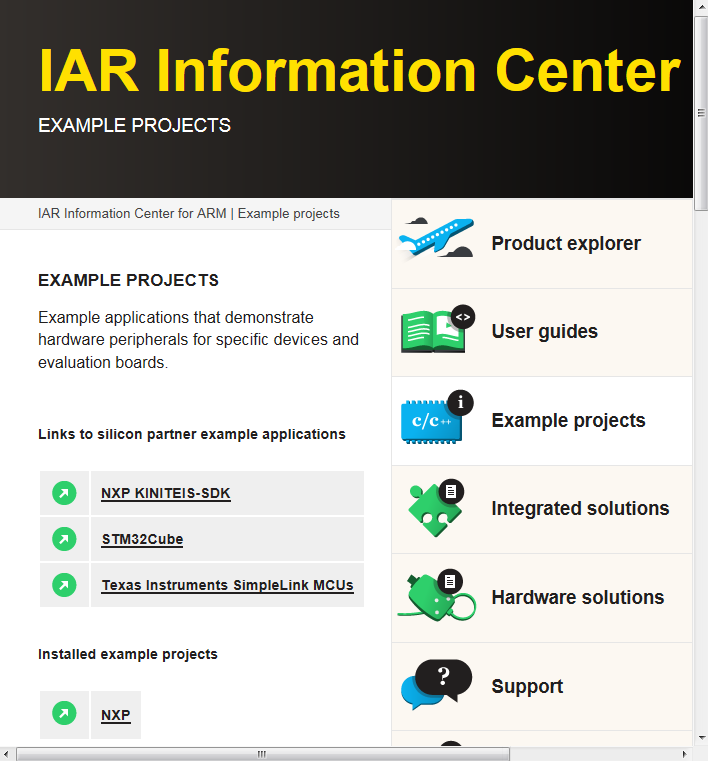
Click the Open Project button.
In the dialog box that appears, choose a destination folder for your project.
The available example projects are displayed in the workspace window. Select one of the projects, and if it is not the active project (highlighted in bold), right-click it and choose Set as Active from the context menu.
To view the project settings, select the project and choose Project>Options. Verify the settings for General Options>Target>Processor variant and Debugger>Setup>Driver. As for other settings, the project is set up to suit the target system you selected.
For more information about the C-SPY options and how to configure C-SPY to interact with the target board, see the C-SPY Debugging documentation.
Click OK to close the project Options dialog box.
To compile and link the application, choose Project>Make or click
 the Make button.
To start C-SPY, choose Project>Download and Debug or click the Download and Debug button. If C-SPY fails to establish contact with the target system, see No contact with the target hardware.
Choose Debug>Go or click
 the Go button to start the application.
Click the Stop button to stop execution.
In your IAR Embedded Workbench workspace, choose Project>CMSIS-Pack Manager or click
 the CMSIS-Pack Manager toolbar button.
Save your workspace using the Save Workspace As dialog box.
In the CMSIS Manager dialog box that is displayed, navigate to the Devices view and select the device you are using.
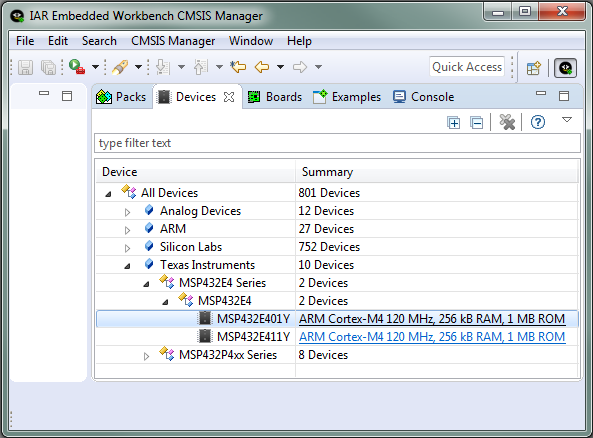
For more information about the CMSIS Manager dialog box, see CMSIS Manager dialog box.
If you did not already install the CMSIS-Pack software pack as described in Installing a CMSIS-Pack software pack, click the tab Packs, select the pack you need, and click the Install button.
Focus shifts to the Console view which prints status messages concerning the installation process.
Click the Devices tab and make sure your device is still selected.
Click the Examples tab. The Examples view lists the available example projects for the selected device.
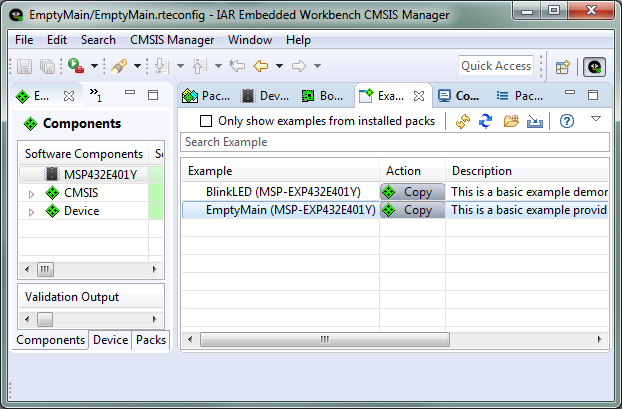
Select an example and click
 the corresponding action button Copy to copy the CMSIS example project into your IAR Embedded Workbench workspace.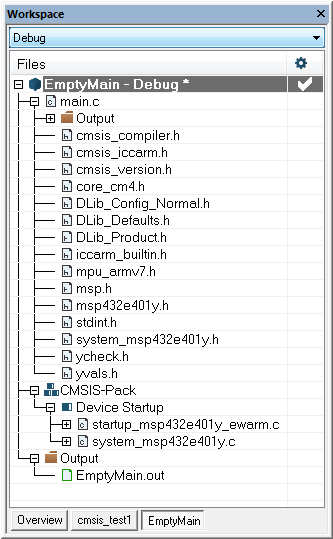
In the Components view, check if there are any unresolved dependencies to other software packs. For information about resolving dependencies, see Installing a CMSIS-Pack software pack, specifically step 6.
Choose Project>Options and verify the settings of your project options. You are now ready to start working with your CMSIS example project in IAR Embedded Workbench.