Replace in Files dialog box
What do you want to do?
Learn how to: Text searching
Read about the Find in Files window
Get reference information about the Replace in Files dialog box, see below the line.

The Replace in Files dialog box is available from the Edit menu.
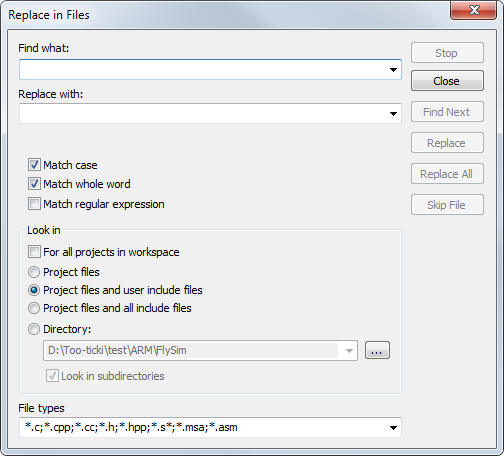
Use this dialog box to search for a specified string in multiple text files and replace it with another string.
The result of the replacement appears in the Find in Files message window—available from the View menu. You can then go to each occurrence by choosing the Edit>Next Error/Tag command, alternatively by double-clicking the messages in the Find in Files message window. This opens the corresponding file in an editor window with the insertion point positioned at the start of the specified text. A blue flag in the left-hand margin indicates the line containing the string you searched for.