Macro Registration window
What do you want to do?
Learn about:
Learn how to:
Get related information:
Get reference information about the Macro Registration window, see below the line.

The Macro Registration window is available from the View>Macros submenu during a debug session.
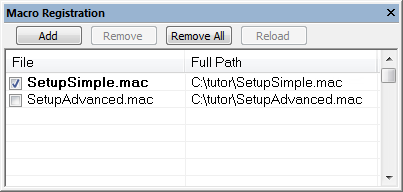
Use this window to list, register, and edit your debugger macro files.
Double-click a macro file to open it in the editor window and edit it.
Context menu
This context menu is available:
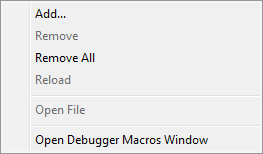
These commands are available:
- Add
Opens a file browser where you can locate the macro file that you want to add to the list. This menu command is also available as a function button at the top of the window.
- Remove
Removes the selected debugger macro file from the list. This menu command is also available as a function button at the top of the window.
- Remove All
Removes all macro files from the list. This menu command is also available as a function button at the top of the window.
- Reload
Registers the selected macro file. Typically, this is useful when you have edited a macro file. This menu command is also available as a function button at the top of the window.
- Open File
Opens the selected macro file in the editor window.
- Open Debugger Macros Window
Opens the Debugger Macros window.