Debugging multiple cores
Setting up for symmetric multicore debugging
Choose Project>Options>Debugger>Multicore and specify the number of cores you have.
You can now start your debug session.
Setting up for asymmetric multicore debugging
There are a number of ways that you can set up for multicore debugging, but this strategy is recommended:
Create a workspace with two or more projects, one for each core or set of cores.
Select an appropriate download strategy. One possible download strategy would be to combine the images for the cores into one and let the master project download the combined image. In this scenario, the partners would have to be configured to attach to a running target, and/or to suppress any downloading.
In the intended master project, choose Project>Options>Debugger>Multicore to open the Multicore options page.
Select Simple. Specify the options Partner workspace (path), Partner project (project name), and Partner configuration (build configuration). These settings are used when the partner session starts.
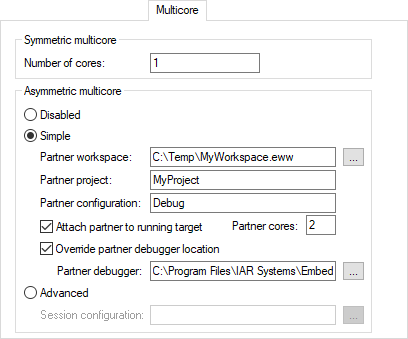
Select the option Attach partner to running target. Use the Partner cores option to specify the number of cores in the partner project.
By default, the Embedded Workbench instance associated with the partner project must be installed in the same directory as the Embedded Workbench instance associated with the master project, for example in
c:\iar\ewarm-2.1w. If the two Embedded Workbench instances were installed in different locations, you must select Override partner debugger location and specify the installation directory of the Embedded Workbench for the partner project. Note that the Embedded Workbench for the partner project must be based on version 9.1.7 or later of the shared components—to check this, choose Help>About>Product Info.For more information about the multicore settings, see Multicore
Select Advanced. Create a multicore session file in XML format with information about location and settings of the partner projects and use the browse button to specify this file. For more information about this file, see The multicore session file. These settings are used when the partner session starts.

Select appropriate reset strategies for all projects:
In the master project, choose Project>Options>Driver>Setup>Reset and select a reset strategy, typically Hardware.
In the Workspace window, switch to the partner projects one at a time. Then for each project, choose Project>Options>Driver>Setup>Reset and select a reset strategy for the partner session that does not affect the master session, typically Software.
Make sure to use compatible settings for the debug probe for all projects.
The master and partner instances are indicated in the main IDE window title bar.

Starting and stopping a multicore debug session
To start a multicore debug session, for example use the standard Download and Debug command, either in the master or in a partner session.
To stop a multicore debug session, for example use the standard Stop Debugging command, which will stop all debugging sessions.