Provisioning devices
How to provision devices:
Start the IAR Secure Deploy – Prototyping application, if it is not already running. Select a product package from the list of products to the left. The product details of the package are displayed to the right.
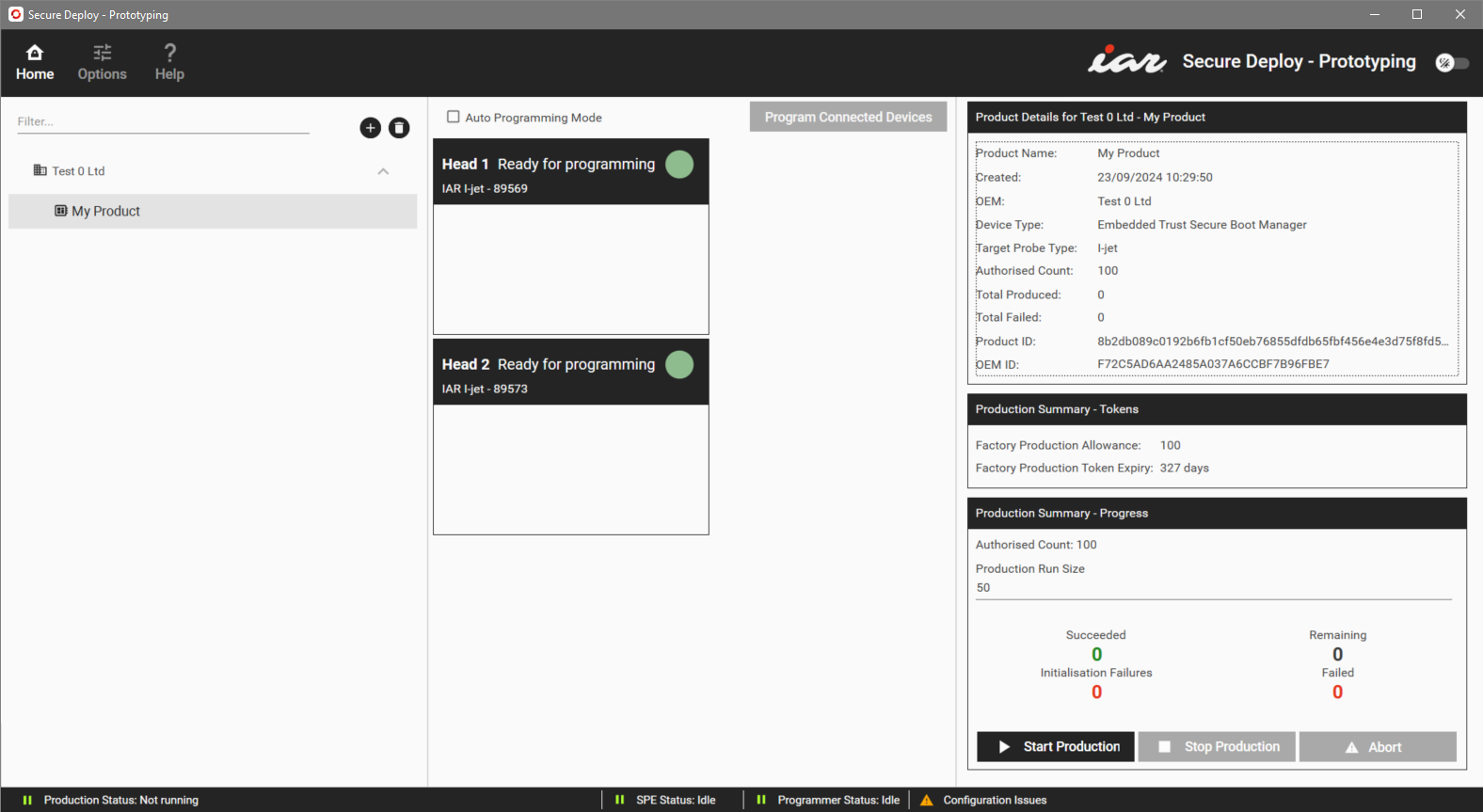
If the list is empty, click the + button to navigate to and import a product package (
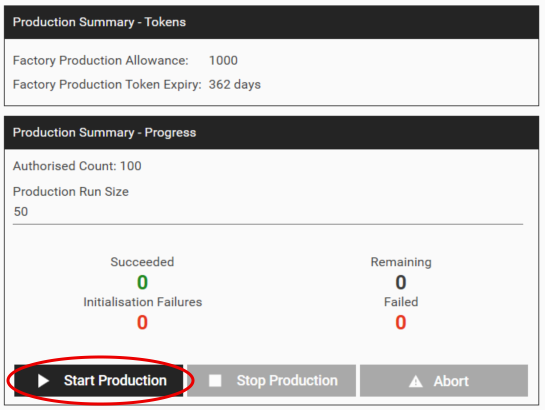
.ppkg) created using IAR Embedded Workbench, see Importing a product package. The importer will verify that it has been signed correctly and is compatible with the connected Security Appliance.Review the details in the Product Details and Production Summary sections of the window—in particular, the Factory Production Allowance, the Factory Production Token Expiry, and the Authorized Count. The Target Probe Type will either be I-jet or RX (for Renesas probes).
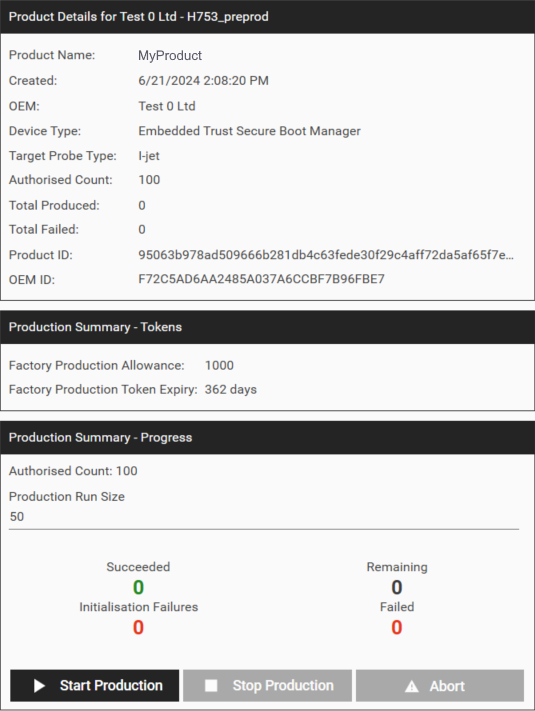
If the Authorized Count is incorrect, the export settings in IAR Embedded Workbench need to be changed, the product package needs to be re-exported with updated settings. and imported again to the IAR Secure Deploy – Prototyping application. If the Factory Production Allowance or the Factory Production Token Expiry is too low, you must import a new Factory Production Token, see Options : Tokens.
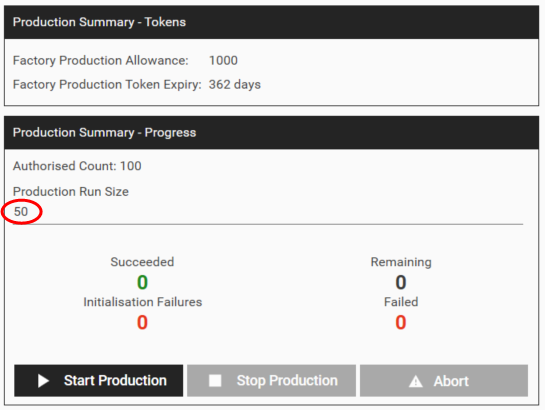
Still in the Production Summary section of the window, set the Production Run Size. This corresponds to the total number of devices you want to produce in this run, and must be a multiple of the number of program heads (see the bottom of the window).
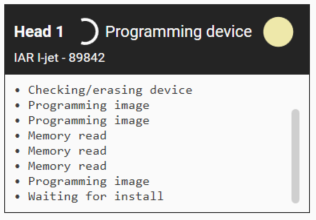
Each program head box represents a hardware programmer with the status “Ready for programming” if it is connected to a board, or “Insert device” if the programmer is not connected to a board.
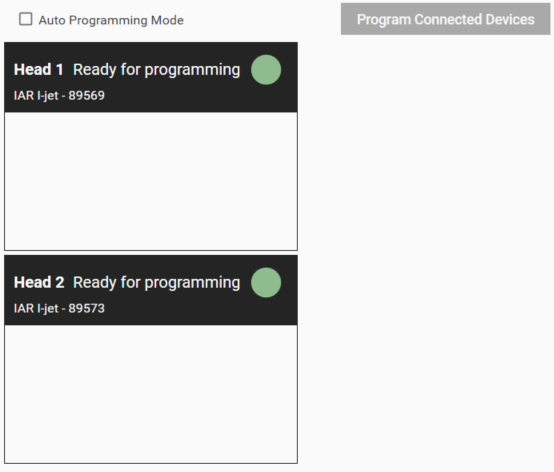
Make sure that:
the program heads match the Target Probe Type—the I-jet type corresponds to I-jet heads, and the RX type to E2 or E2 Lite heads.
there are enough program heads that are “Ready for programming”. If the number is fewer than the Production Run Size, you will have to swap out the devices after each is programmed, as part of a production run.
Click Start Production to download the information in the imported package to the Security Appliance.
Click Program Connected Devices. The identity keys are generated by the Security Appliance and injected into the part.
Note
To immediately stop the programming operation, click Abort. This will register as a failure against the product unless you do it during the initialization phase, in which case it will count as an initialization failure instead and not decrease the production allowance.
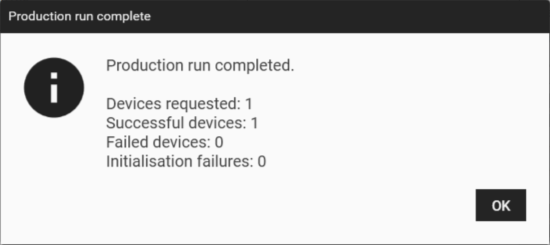
The provisioning sequence will check the devices, read the serial number, and provision the devices, before completing the process.
Tip
If the Auto Programming Mode option is selected, a device is automatically provisioned when you connect it to the Security Appliance, for a simpler and faster process when you have many devices to provision.
Note
If you reach the Factory Production Allowance and still need to provision more devices, you must switch to the Options>Tokens category and import a new Factory Production Token, see Options : Tokens.